
Close Menu
  • Categories
    • Top Software
    • Statistics
    • Research Reports
    • Guides
    • Software Reviews
    • SaaS Talks
  • Resources
    • SW Score Methodology
    • SaaS Terms Glossary
  • Browse Software
Facebook X (Twitter) Instagram
SaaSworthy Blog | Top Software, Statistics, Insights, Reviews & Trends in SaaSSaaSworthy Blog | Top Software, Statistics, Insights, Reviews & Trends in SaaS
  • Categories
    • Top Software
    • Statistics
    • Research Reports
    • Guides
    • Software Reviews
    • SaaS Talks
  • Resources
    • SW Score Methodology
    • SaaS Terms Glossary
  • Browse Software
SaaSworthy Blog | Top Software, Statistics, Insights, Reviews & Trends in SaaSSaaSworthy Blog | Top Software, Statistics, Insights, Reviews & Trends in SaaS
Home»Misc»Zoom Virtual Background: how to set it, the best places to find it and more
Misc

Zoom Virtual Background: how to set it, the best places to find it and more

Arijit DuttaBy Arijit Dutta4 Mins ReadApril 18, 2020
Facebook Twitter LinkedIn Reddit Email
Table of Contents
  1. Signing up for Zoom
  2. Starting a meeting
  3. Searching for a background
  4. Setting a Virtual Background on Zoom in Linux
  5. Setting a Virtual Background on Zoom in Windows / macOS

Zoom is a popular video conferencing app that can be used to host webinars and online meetings. And with the world under quarantine, its popularity has skyrocketed. Since you will be working from home, it’s difficult to have a professional setup that’s most apt for meetings over Zoom. But fret not, the software has an option to set virtual backgrounds. So if you’re looking to do that, then here’s a step-by-step guide as to how to go about it. Do note that the article starts with the basic process of signing up and starting your first meeting, and if you have already done that, then you skip these steps.

Related read: Best video conferencing software | The rise and rise of video conferencing apps

Table of Contents

  • Signing up for Zoom
  • Starting a meeting
  • Searching for a background
    • Setting a virtual background on Zoom
  • Setting a Virtual Background on Zoom in Linux
  • Setting a Virtual Background on Zoom in Windows / macOS
    • Setting a Virtual Background on Zoom in iOS

Signing up for Zoom

  1. Visit Zoom.us
  2. Click on Sign Up, It’s Free Button
  3. Create a new account using your email
  4. Verify your email account

Congratulations your Zoom account has been created.
Starting a meeting

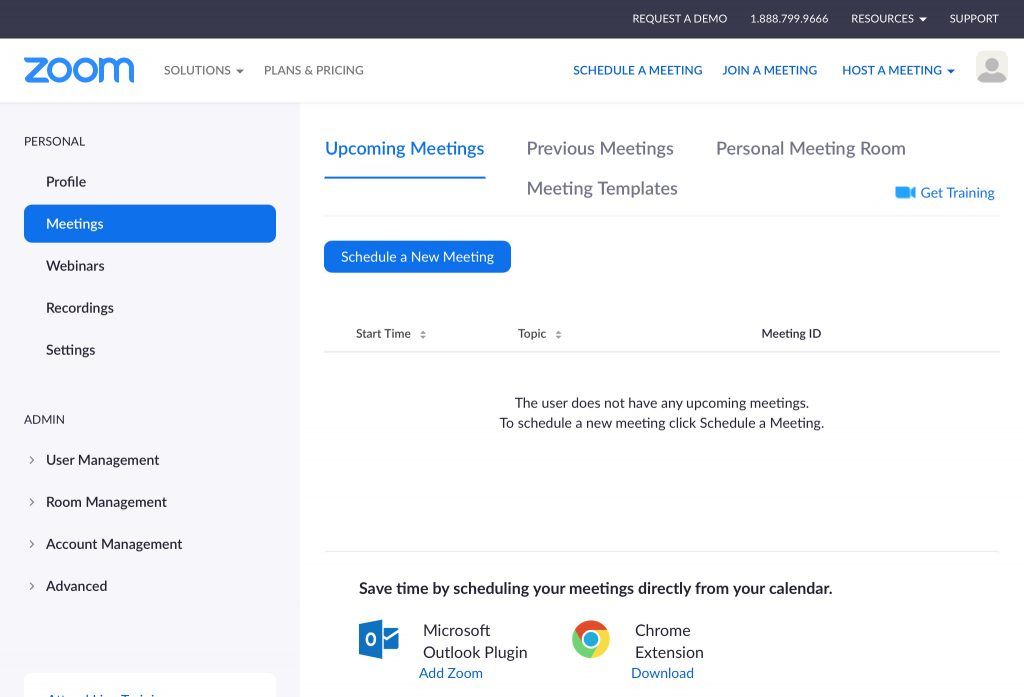
  1. After logging in or signing up, you should be greeted with the dashboard.
  2. Click on Schedule a New Meeting button.
  3. Specify the basic details about the meeting such as description, time, duration, etc.
  4. Ensure that the Video for Host option is On.
  5. Click on the Save button.

On the Manage Meeting Page click on the Start this Meeting button.

Voila, you have started your first meeting.

Searching for a background

  1. Visit unsplash.com
  2. Search for an appropriate image using terms such as Office Space
  3. Select the image you like such as this one and click on it
  4. Click on Download for Free button to download the image

Even studios like Pixar are also offering a Zoom Virtual Background. Similarly, there are many other avenues, however you’ll need to ensure that virtual backgrounds for Zoom aren’t too distracting.

pic.twitter.com/V4K7pf2QWb

— Pixar (@Pixar) March 30, 2020

Setting a virtual background on Zoom

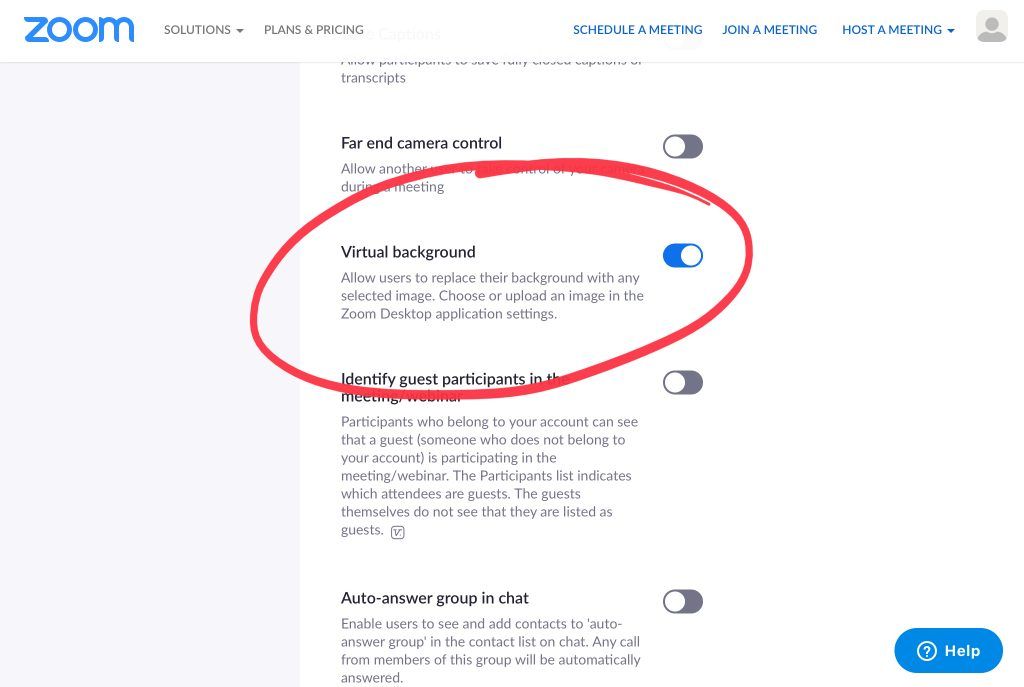
A virtual background can be set for all members of an organization, a user, a group or a single Zoom Room. To set the background follow these steps:

  1. Sign in and ensure that you are on the Meetings page
  2. Click on the Settings option in the sidebar
  3. When the settings page opens, start scrolling down
  4. When you reach the Virtual Background setting, toggle the switch On
  5. To set the Virtual Background for any specific user, Group or a Zoom Room, click on the appropriate option in the sidebar.

Congrats you have successfully switched on the virtual background setting.
You can set up a green screen behind you for better rendering of the virtual background. Also, as soon as you click on Start Meeting after following the steps above, Zoom will prompt you to download the appropriate Zoom Client for your device. Zoom provides clients for Linux, Windows, macOS, and iOS. Here the tutorials for each of these platforms.

Setting a Virtual Background on Zoom in Linux

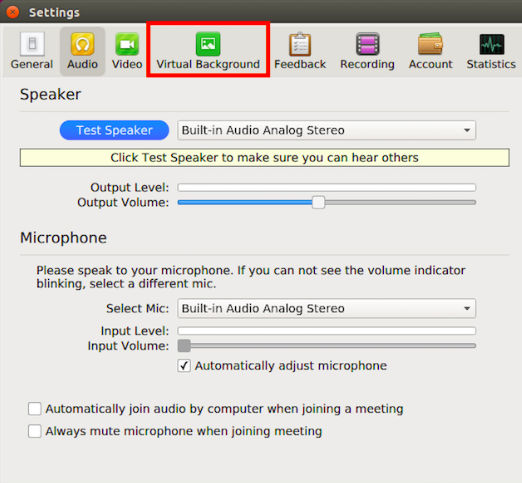
  1. Sign into the client and click on your profile picture. Then click on Settings
  2. Select the Virtual Background Tab.
  3. Click on Add image and choose any image that you had downloaded by following the steps mentioned previously. Save your settings by clicking OK.
Setting a Virtual Background on Zoom in Windows / macOS

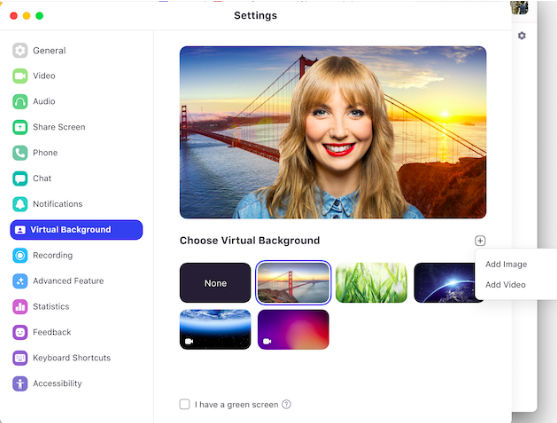
  1. Sign in to the client, click on your profile picture and then on your settings
  2. Click on the Virtual Background tab.
  3. Click on “I have a green screen” and choose the image that you had downloaded previously. Save your settings by clicking OK.
  4. To change the background during a meeting, choose the arrow next to Start / Stop video and select Choose a Virtual Background. Then follow steps 2 and 3.

Setting a Virtual Background on Zoom in iOS

  1. During a meeting, click on More.
  2. Select Virtual Background.
  3. Click on the + sign in the bottom panel to add the desired images and click on close.
Sadly, setting a virtual background on Zoom in Android isn’t possible yet, but we can hope that the company is working on incorporating this feature. However, you can also switch on the Virtual Background feature from the web app as mentioned before. To avoid copyright issues, use images from websites like Unsplash.

What is your favorite Zoom Virtual Background? Share with us in the comment box below.

Previous ArticleSaaS weekly roundup #15: Verizon acquires BlueJeans, FarEye raises $25million Series D funding and more
Next Article Best screen recorder for Chrome
Arijit Dutta

Related Posts

Best Ways to Enhance Your PPC System With Artificial Intelligence

July 20, 2024

Top 10 Best AI Tools for Writing: Elevating Your Writing Game

February 9, 2024

Top 5 Ed-Tech Solution Providers in 2023

October 19, 2023

Top 5 CRM Features That You Need To Know About

September 3, 2023
Editor's Picks

NinjaOne Acquires Dropsuite to Unify Backup and Endpoint Management

July 11, 2025

Gusto Pricing Explained: Which Plan Is Right for Your Business in 2026?

April 7, 2026

ClickUp Pricing Plans & Features (2026): Is It Still the Best All-in-One Work Platform?

April 6, 2026

Top 50 Onboarding Statistics for 2026

March 11, 2026

45 Key Remote Work Statistics To Look Out For

March 12, 2026

Best Employer of Record (EOR) Services for February 2026

February 18, 2026

Freshdesk Pricing Plans 2026: Which Plan Is Right for Your Support Team

February 3, 2026

Employer of Record vs PEO: Which Service Is Right for You?

January 19, 2026

Talkroute Review 2025: Is This the Virtual Phone System Your Business Needs?

July 10, 2025

Comet vs Dia: The Rise of AI Browsers

July 21, 2025
Recent Posts

Grammarly AI Agents: From Writing Assistant to Workplace Communication Platform

June 8, 2026

9 Budget WordPress Hosting Plans That Still Get the Job Done

June 5, 2026

Aircall Acquires Piper AI to Turn Customer Conversations Into Revenue Action

June 4, 2026

How to Legally Hire in Canada Using an Employer of Record (2026 Guide)

June 3, 2026

Aira Review 2026: AI-Powered Sales Intelligence Tool for Modern B2B Teams Introduction

June 1, 2026

Top 10 Remote Interview & Video Recording Tools for 2026

May 31, 2026

Top 10 Podcast Recording Software in 2026 for High-Quality Audio & Video

May 30, 2026

Best Enterprise Remote Access Software for Modern IT Teams: Features, Security, and Comparison

May 30, 2026

Best RMM Tools for Patch Management and Endpoint Control in 2026: A Complete Guide

May 29, 2026

NinjaOne vs Tanium Comparison: Features, Pricing, Security, and Use Cases

May 28, 2026

Subscribe now!

Power up your business growth through innovation! Subscribe to our monthly newsletter for cutting-edge SaaS insights and to stay ahead of the curve with the latest trends in software

About
  • Home
  • All Categories
  • Blog
  • SW Score Methodology
  • SaaS Terms Glossary
Vendors
  • Get Listed
Legal
  • Privacy Policy
  • Terms of Use
  • Cookie Policy
SaaSworthy
Facebook X (Twitter) LinkedIn Instagram

[email protected]

©2026 SaaSworthy.com

Type above and press Enter to search. Press Esc to cancel.