
Close Menu
  • Categories
    • Top Software
    • Statistics
    • Research Reports
    • Guides
    • Software Reviews
    • SaaS Talks
  • Resources
    • SW Score Methodology
    • SaaS Terms Glossary
  • Browse Software
Facebook X (Twitter) Instagram
SaaSworthy Blog | Top Software, Statistics, Insights, Reviews & Trends in SaaSSaaSworthy Blog | Top Software, Statistics, Insights, Reviews & Trends in SaaS
  • Categories
    • Top Software
    • Statistics
    • Research Reports
    • Guides
    • Software Reviews
    • SaaS Talks
  • Resources
    • SW Score Methodology
    • SaaS Terms Glossary
  • Browse Software
SaaSworthy Blog | Top Software, Statistics, Insights, Reviews & Trends in SaaSSaaSworthy Blog | Top Software, Statistics, Insights, Reviews & Trends in SaaS
Home»Guides»How to Delete a Page in Word: 4 Simple Steps
Guides

How to Delete a Page in Word: 4 Simple Steps

Saurabh YadavBy Saurabh Yadav4 Mins ReadJune 22, 2025
Facebook Twitter LinkedIn Reddit Email
Table of Contents
  1. Step 1: Open Your Document in Word
  2. Step 2: Navigate to the Page You Want to Delete
  3. Step 3: Select the Content on the Page (Optional)
  4. Step 4: Delete the Page
  5. FAQs

Microsoft Word is a versatile tool for creating documents of all kinds, from essays and reports to flyers and newsletters. However, sometimes you may find yourself needing to delete a page from your document, whether it’s an extra blank page at the end or a page with unwanted content. Fortunately, removing pages in Word is a straightforward process once you know how. In this article, we’ll walk you through the steps to delete a page in Microsoft Word.

Table of Contents

  • Step 1: Open Your Document in Word
  • Step 2: Navigate to the Page You Want to Delete
  • Step 3: Select the Content on the Page (Optional)
  • Step 4: Delete the Page
    • Method 1: Backspace or Delete Key
    • Method 2: Using the Page Navigation
    • Method 3: Using the Ribbon
  • FAQs
    • Can I delete a specific page in the middle of my document without affecting the rest of the content?
    • What should I do if I accidentally delete the wrong page?
    • Will deleting a page also delete the header or footer associated with it?
    • Is there a way to delete multiple pages at once?

Step 1: Open Your Document in Word

First, open the Word document from which you want to delete a page. This could be a new document you’ve just created or an existing one you’re editing.

Step 2: Navigate to the Page You Want to Delete
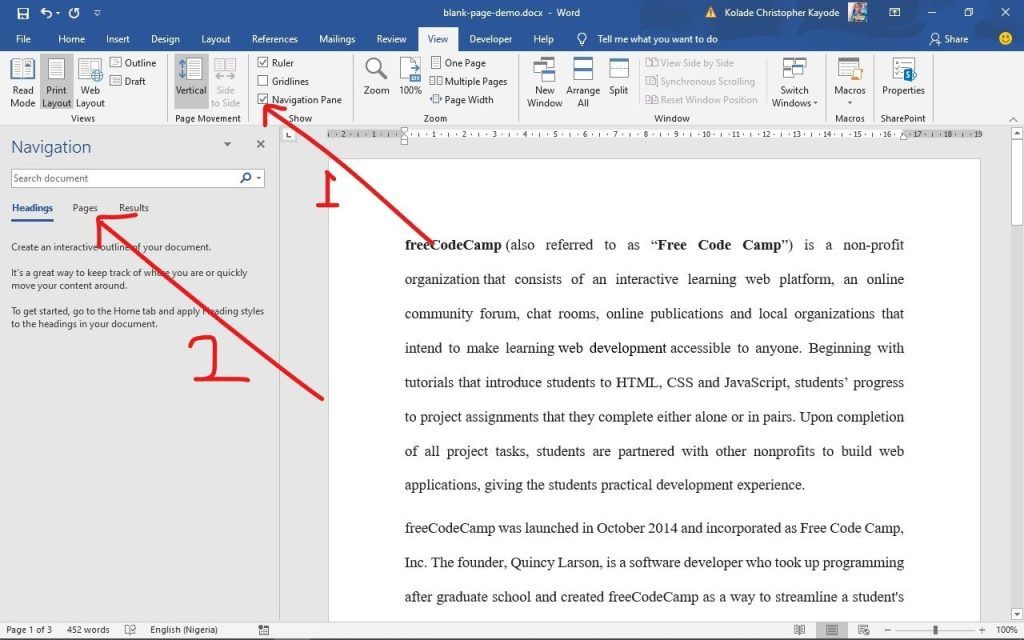
Scroll through your document or use the navigation tools in Word to find the page you want to delete. You can use the scrollbar on the right side of the window, the arrow keys on your keyboard, or the navigation pane if it’s enabled.

Also read: 10 Best Free Disk Cloning Software for Windows 10 in 2024

Step 3: Select the Content on the Page (Optional)
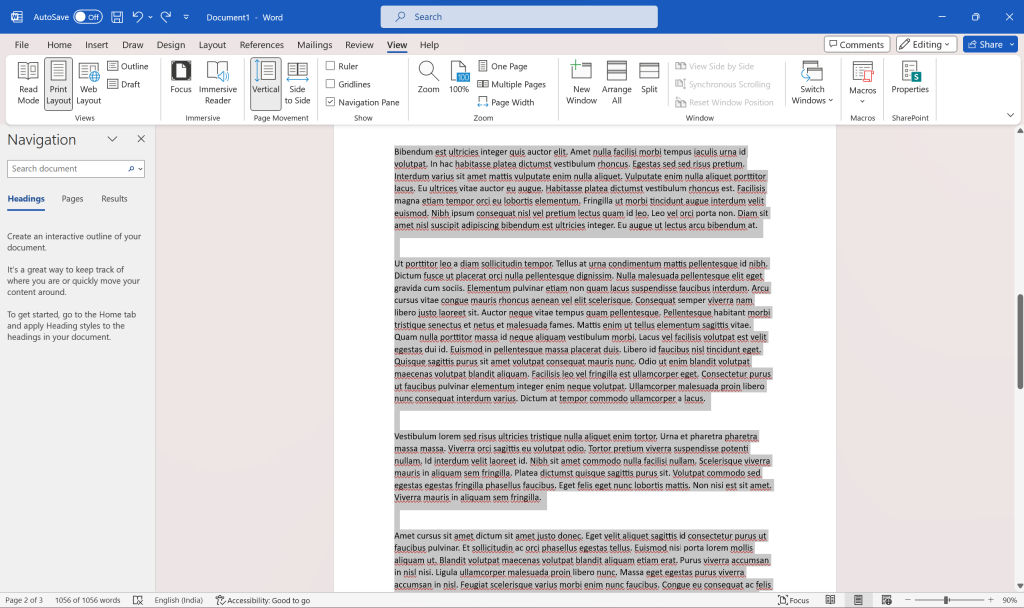
If the page you want to delete contains content you want to remove, such as text, images, or tables, you can select it by clicking and dragging your mouse over the content. This step is optional but can be helpful if you only want to delete certain elements from the page.

Step 4: Delete the Page

Once you’ve located the page you want to delete, there are a few methods you can use to remove it:

Method 1: Backspace or Delete Key

If the page is blank or contains no content you want to keep, you can simply place your cursor at the beginning of the page and press the Backspace key on your keyboard (for pages at the end of the document) or the Delete key (for pages at the beginning or middle of the document). This method will remove the page and shift the content after it up to fill the space.

Method 2: Using the Page Navigation

If you’re using Word’s navigation pane, you can delete a page by clicking on its thumbnail in the pane to select it, and then pressing the Delete key on your keyboard. This method is useful for quickly deleting pages, especially if your document is lengthy and you want to remove multiple pages at once.

Method 3: Using the Ribbon

Alternatively, you can delete a page using the Ribbon in Word:

  • Click on the “Layout” tab in the ribbon.
  • In the “Page Setup” group, click on the “Breaks” dropdown menu.
  • Select “Next Page” from the menu. This will insert a section break at the beginning of the page you want to delete.
  • Scroll to the top of the next page (the one you want to delete).
  • Click at the very beginning of the page to place your cursor there.
  • Press the Delete key on your keyboard to remove the page.

Deleting a page in Microsoft Word is a simple task that can be accomplished using a few different methods. Whether you prefer using keyboard shortcuts, the navigation pane, or the Ribbon, knowing how to remove unwanted pages from your document can help you create cleaner and more polished documents. By following the step-by-step guide outlined in this article, you’ll be able to delete pages in Word with ease whenever the need arises.

FAQs

Can I delete a specific page in the middle of my document without affecting the rest of the content?

Yes, you can. Use the method involving inserting a section break before the page you want to delete. This way, you can remove the page without altering the content before or after it.

What should I do if I accidentally delete the wrong page?

If you accidentally delete the wrong page, you can use the Undo function by pressing Ctrl + Z on your keyboard immediately after deletion. This will revert the document to its previous state, allowing you to correct the mistake.

Will deleting a page also delete the header or footer associated with it?

Deleting a page in Word typically only removes the content on that page. Headers and footers are often part of the document’s layout and are not automatically deleted when removing a page. However, if the header or footer is specific to the deleted page, it may be removed as well.

Is there a way to delete multiple pages at once?

Yes, you can delete multiple pages at once by using the Page Navigation Pane. Simply select the thumbnails of the pages you want to delete in the navigation pane, then press the Delete key on your keyboard. This method is efficient for removing several consecutive pages quickly.

Previous ArticleTop Square Payroll Alternatives for 2025
Next Article Best TeamViewer Alternatives for 2025: Top Picks for Remote Desktop and Support
Saurabh Yadav

Saurabh is a seasoned SaaS expert with over eight years of experience, specializing in HR technology, payroll, and workforce management solutions. A PMP-certified professional and an alumnus of XLRI, he has collaborated with leading industry publishers, sharing his insights on ATS, payroll, employee engagement, HR software, benefits administration, compensation management, interview scheduling software, performance management systems, and employee recognition. With a deep understanding of SaaS trends, Saurabh continues to shape the future of HR tech through his thought leadership and expertise.

Related Posts

How to Legally Hire in Canada Using an Employer of Record (2026 Guide)

June 3, 2026

Brand24 Review 2026: AI Social Listening Tool for Modern Brand Monitoring

May 28, 2026

Looker Pricing 2026: Complete Guide

May 23, 2026

Lightspeed POS Pricing Plans 2026: Complete Guide

May 20, 2026
Editor's Picks

NinjaOne Acquires Dropsuite to Unify Backup and Endpoint Management

July 11, 2025

Gusto Pricing Explained: Which Plan Is Right for Your Business in 2026?

April 7, 2026

ClickUp Pricing Plans & Features (2026): Is It Still the Best All-in-One Work Platform?

April 6, 2026

Top 50 Onboarding Statistics for 2026

March 11, 2026

45 Key Remote Work Statistics To Look Out For

March 12, 2026

Best Employer of Record (EOR) Services for February 2026

February 18, 2026

Freshdesk Pricing Plans 2026: Which Plan Is Right for Your Support Team

February 3, 2026

Employer of Record vs PEO: Which Service Is Right for You?

January 19, 2026

Talkroute Review 2025: Is This the Virtual Phone System Your Business Needs?

July 10, 2025

Comet vs Dia: The Rise of AI Browsers

July 21, 2025
Recent Posts

XBert AI Receptionist Review: Can AI Finally Solve the Missed Call Problem?

June 16, 2026

Best Graphic Design Software for Designers and Creative Teams in 2026

June 12, 2026

Grammarly AI Agents: From Writing Assistant to Workplace Communication Platform

June 8, 2026

9 Budget WordPress Hosting Plans That Still Get the Job Done

June 5, 2026

Aircall Acquires Piper AI to Turn Customer Conversations Into Revenue Action

June 4, 2026

How to Legally Hire in Canada Using an Employer of Record (2026 Guide)

June 3, 2026

Top 10 Remote Interview & Video Recording Tools for 2026

May 31, 2026

Top 10 Podcast Recording Software in 2026 for High-Quality Audio & Video

May 30, 2026

Best Enterprise Remote Access Software for Modern IT Teams: Features, Security, and Comparison

May 30, 2026

Best RMM Tools for Patch Management and Endpoint Control in 2026: A Complete Guide

May 29, 2026

Subscribe now!

Power up your business growth through innovation! Subscribe to our monthly newsletter for cutting-edge SaaS insights and to stay ahead of the curve with the latest trends in software

About
  • Home
  • All Categories
  • Blog
  • SW Score Methodology
  • SaaS Terms Glossary
Vendors
  • Get Listed
Legal
  • Privacy Policy
  • Terms of Use
  • Cookie Policy
SaaSworthy
Facebook X (Twitter) LinkedIn Instagram

[email protected]

©2026 SaaSworthy.com

Type above and press Enter to search. Press Esc to cancel.