

For many business owners, using Microsoft Excel to create and analyze spreadsheets might feel like continuously running up against a brick wall if you aren’t familiar with its formulas. You think to yourself as you manually duplicate columns and scribble long-form equations on a scrap of paper.
But running excel formulas is no kids play either. In fact, Excel may be challenging in that sense. On the one hand, it is software that reports and analyses marketing and advertising data extraordinarily well. It may even demonstrate how to use charts and pivot tables to visualize data. On the other hand, it is simple to feel as though it is working against you without the proper training. To begin with, Excel can automatically execute more than a dozen important formulae for you, saving you from having to go through several cells with a calculator on your desk.
Table of Contents
What are Excel Formulas?
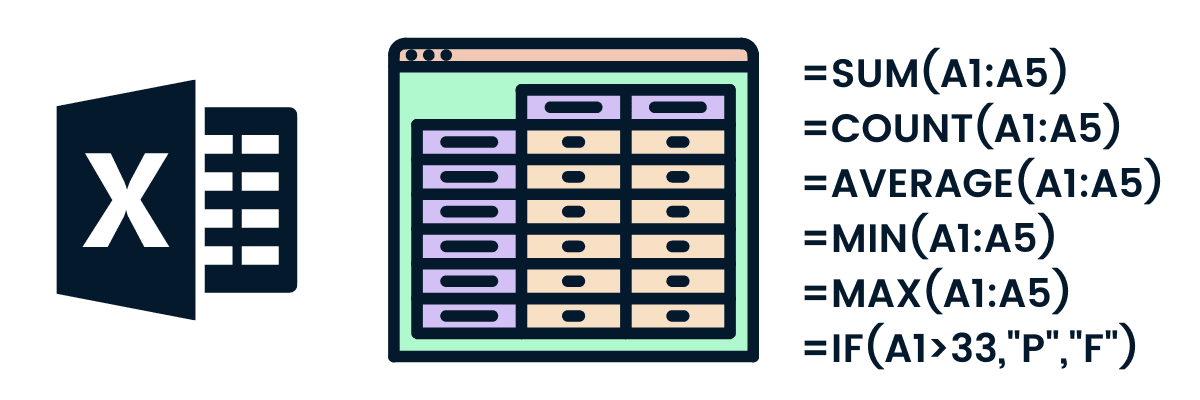
Excel formulas teach you how to create connections between the values in your spreadsheet’s cells, perform calculations using these values, and then deliver the results in your chosen cell. Formulas you can automatically complete include sum, subtraction, proportion, division, average, and even dates and occasions.
Let’s go over some basic formulas one by one for your better understanding.
7 Most Used Excel Formulas That Make Your Life Easy
1. Sum
SUM The equals sign, =, is used at the beginning of every Excel calculation, followed by a specific text tag designating the operation you want Excel to perform.
One of the simplest formulas you can enter directly into a spreadsheet to find the sum (or total) of two or more numbers is the SUM method in Excel. Enter the values you want to add together using the syntax =SUM to use the SUM system (worth 1, worth 2, and many others).
The values you submit into the SUM system might be either exact numbers or the quantity in a specific spreadsheet cell.
How to use it?
For instance, enter the following formula into a spreadsheet cell to look for the SUM of 30 and 80: =SUM (30, 80). When you hit “Enter,” the cell will display the sum of all the numbers, 110.
For example, enter the following formula into a cell of your spreadsheet to find the SUM of the values in cells B2 and B11: =SUM (B2, B11). When you hit “Enter,” the cell will display the sum of the integers that are now crammed into cells B2 and B11. The computer will return 0 if there are no numbers in any of the two cells.
2. IF
=IF(logical test, value if true, value if false) in Excel stands for the Excel IF system. This enables you to add text into the cell that asks whether another condition in your spreadsheet is true or false. For instance, the expression =IF(D2=”Gryffindor”,”10″,”0″”) would give cell D2 10 factors if it contained the word “Gryffindor.”
There are times when we need to know how frequently a price appears in our spreadsheets. However, there are also times when we must locate the cells that contain these values and insert specific information next to them.
3. Proportion
Enter the cells you are determining a proportion for in the format =A1/B1 in Excel to use the share system. Highlight the cell, select the “Residence” tab, pick “Proportion” from the numbers dropdown menu, and the resulting decimal value will be converted to a percentage.
Excel does not have a “system” for percentages per se, but it does make it simple to convert the value of any cell into a \%, so you are not forced to calculate and reenter the numbers yourself.
Under Excel’s Home tab is the key setting for converting a cell’s value into a percentage. Pick this tab, highlight the cell or cells you want to convert to a proportion, then select Conditional Formatting from the dropdown menu (this). Menu button may say “Basic” at first). Then, choose “Proportion” from the checklist of choices that seems. It will convert the worth of every cell you’ve got highlighted right into a proportion. See this function under
4. Array
The Excel formula =(Begin Worth 1:Finish Worth 1)*(Begin Worth 2:Finish Worth 2) encapsulates a simple system in brace letters. Instead of just adding or multiplying individual cells, pressing Ctrl, Shift, and Heart will calculate and return values from many ranges.
Simply enter the cells, values, or range of cells you want to perform that arithmetic on and use the =SUM system to calculate the sum, product, or quotient of individual cells. But what about many ranges? How can you determine the combined value of a sizable bunch of cells?
Useful tools for running multiple systems simultaneously in one are numerical arrays.
5. Count
In Excel, the COUNT system is shown by =COUNT (Begin Cell:Finish Cell). This system will return a price equal to the number of entries found inside the range of cells you specified. For instance, =COUNT(A1:A10) will return the price of 8 if there are eight cells with values entered between A1 and A10.
Excel’s COUNT feature is extremely useful for large spreadsheets where you need to know how many cells contain specific information. Beware: This system will not perform any calculations on the cell values themselves. The sole purpose of this approach is to determine how many cells in a certain variety are focused on a single activity.
6. Average
Enter the numbers, cells, or range of cells you are computing the typical for in Excel using the syntax =AVERAGE(number1, number2, and many others.) or =AVERAGE (Begin Worth:Finish Worth). It will determine the average value across all cell ranges or values contained within the parenthesis.
Excel’s ability to calculate the average of many cells saves you from having to look up individual sums and then solve a separate division equation for the total. You can let Excel handle all of the fine tunings for you if you use =AVERAGE as your initial text entry.
7. Division
Enter the cells you’re dividing into Excel with the format =A1/B1 to use the division system. This approach divides cell A1 by cell B1 using a forward slash, “/.” For instance, the result of =A1/B1 would be 0.5 if A1 was 5 and B1 was 10.
One of the simplest functions you may use in Excel is division. To do this, place the cursor in an empty cell, type the equals sign (“=”), and then add the two (or more) values you wish to divide, separating them with a forward slash (“/”). The result must have the following format: =B2/A2.
Conclusion
Excel usage in marketing and advertising is largely inevitable; nevertheless, with these strategies, it need not be so intimidating. As they say, observation is the mother of all wisdom. These formulas, quick cuts, and techniques will become more automatic the more you use them.
