
Close Menu
  • Categories
    • Top Software
    • Statistics
    • Research Reports
    • Guides
    • Software Reviews
    • SaaS Talks
  • Resources
    • SW Score Methodology
    • SaaS Terms Glossary
  • Browse Software
Facebook X (Twitter) Instagram
SaaSworthy Blog | Top Software, Statistics, Insights, Reviews & Trends in SaaSSaaSworthy Blog | Top Software, Statistics, Insights, Reviews & Trends in SaaS
  • Categories
    • Top Software
    • Statistics
    • Research Reports
    • Guides
    • Software Reviews
    • SaaS Talks
  • Resources
    • SW Score Methodology
    • SaaS Terms Glossary
  • Browse Software
SaaSworthy Blog | Top Software, Statistics, Insights, Reviews & Trends in SaaSSaaSworthy Blog | Top Software, Statistics, Insights, Reviews & Trends in SaaS
Home»Guides»How to Sticker a Snap in Snapchat
Guides

How to Sticker a Snap in Snapchat

Shashank TripathiBy Shashank Tripathi4 Mins ReadFebruary 3, 2025
Facebook Twitter LinkedIn Reddit Email
Table of Contents
  1. Types of Stickers on Snapchat
  2. Step-by-Step Guide to Adding Stickers to Your Snap
  3. Tips and Tricks for Using Stickers
  4. How to Remove or Edit Stickers
  5. Frequently Asked Questions

Stickers are digital graphics, icons, or images that you can overlay on your photos and videos. They come in various forms, such as emojis, Bitmojis, GIFs, and custom-created stickers. Snapchat stickers can:

  • Add humor or emotion to your snaps.
  • Highlight key elements in a photo or video.
  • Create an artistic or thematic vibe.
  • Personalize your content for friends, family, or followers.

With endless customization options, stickers have become an essential part of Snapchat’s creative toolbox.

Table of Contents

  • Types of Stickers on Snapchat
  • Step-by-Step Guide to Adding Stickers to Your Snap
  • Tips and Tricks for Using Stickers
  • How to Remove or Edit Stickers
  • Frequently Asked Questions
    • Can I use stickers in chats?
    • How do I find trending stickers?
    • Are custom stickers saved?
    • Can I create Bitmoji stickers?

Types of Stickers on Snapchat

Before diving into how to add them, it’s important to understand the various sticker types available:

  1. Pre-Installed Stickers: These are default stickers provided by Snapchat, including emojis and Bitmojis.
  2. GIF Stickers: Powered by GIPHY, these are animated stickers that add dynamic elements to your snap.
  3. Custom Stickers: You can create your own stickers from your snaps.
  4. Location-Based Stickers: Unique stickers that are available in specific regions or at special events.
  5. Time, Temperature, and Location Stickers: Add real-time contextual information to your snaps.

Step-by-Step Guide to Adding Stickers to Your Snap

Step 1: Open Snapchat and Take a Snap
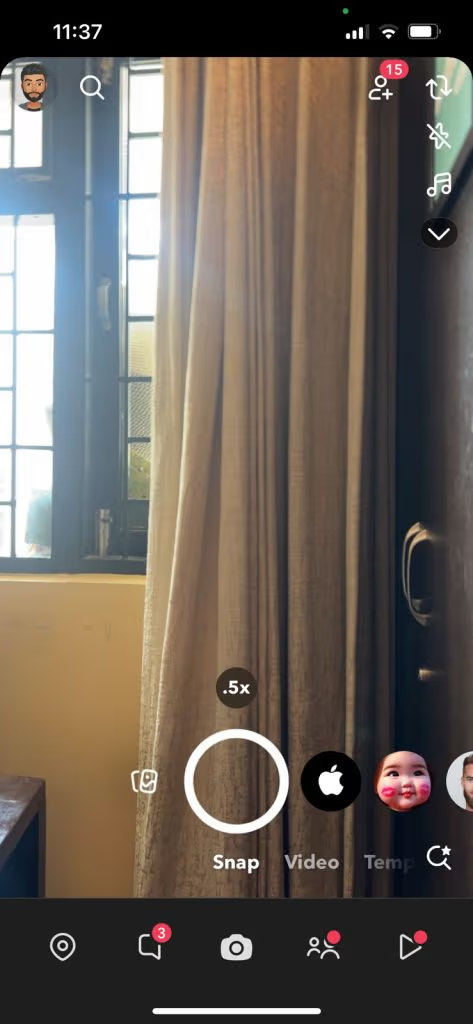
  1. Open the Snapchat app.
  2. Tap the camera icon to take a photo or hold it to record a video.
  3. Once you’ve captured your content, proceed to the editing screen by clicking the checkmark or arrow button.

Step 2: Access the Sticker Menu
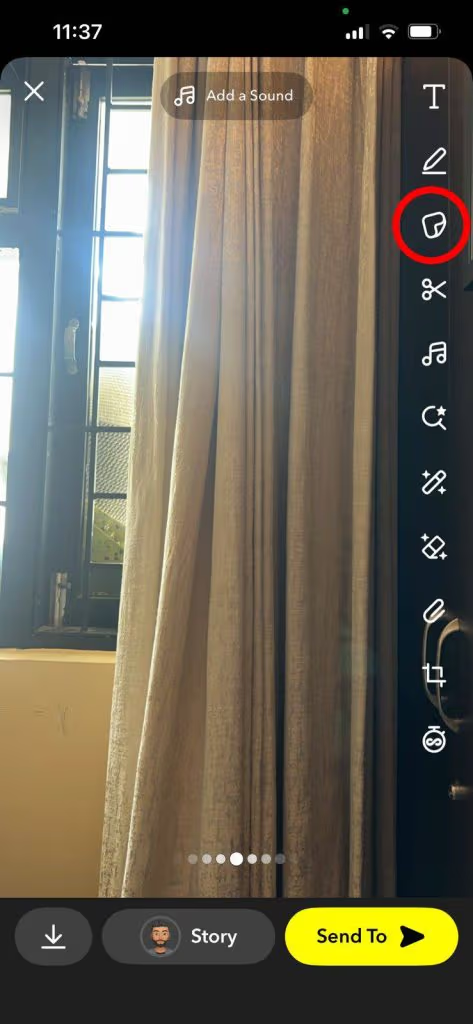
  1. On the editing screen, look for the sticker icon (a square with a folded corner) on the right-hand side.
  2. Tap the sticker icon to open the sticker menu.

Step 3: Choose a Sticker
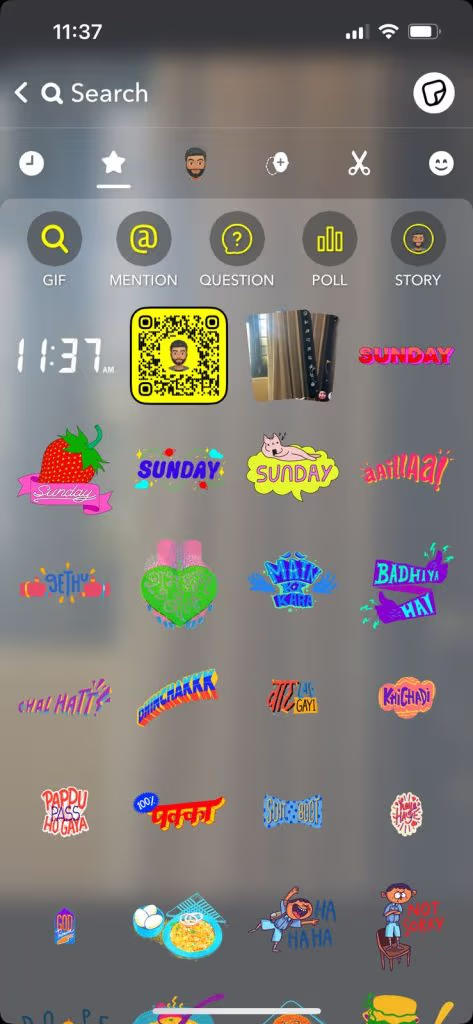
  1. Browse Categories: The sticker menu is organized into categories like Bitmojis, emojis, and GIFs.
  2. Search for Specific Stickers: Use the search bar at the top to find stickers related to keywords like “love,” “funny,” or “dogs.”
  3. Explore GIFs: Tap the “GIF” option to browse animated stickers powered by GIPHY.

Step 4: Customize Sticker Placement
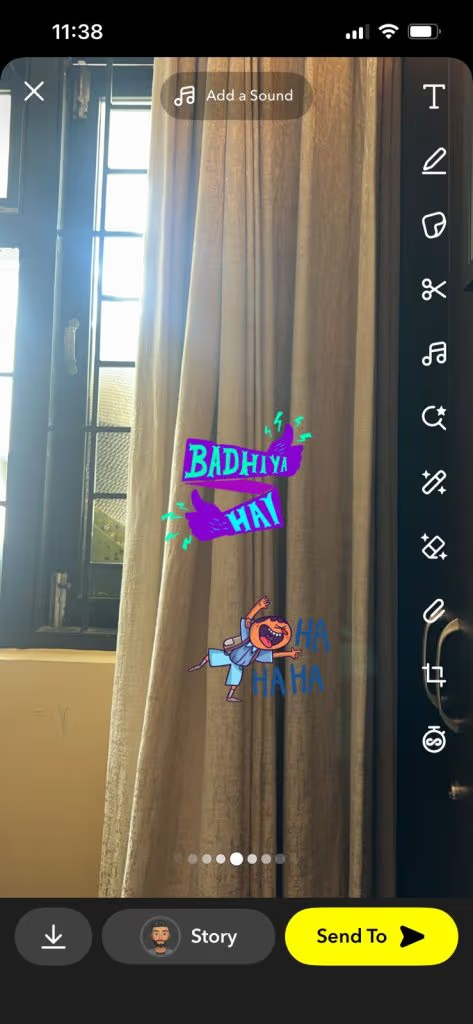
  1. Tap the sticker you want to add to your snap.
  2. Drag the sticker to your desired location on the photo or video.
  3. Pinch the sticker to resize it – pinch in to make it smaller or pinch out to enlarge it.
  4. Rotate the sticker by twisting two fingers on the screen.

Also read: How to Create an Editorial Calendar in 2025

Step 5: Add Multiple Stickers (Optional)

  • Tap the sticker icon again to add more stickers.
  • There’s no limit to the number of stickers you can add, but avoid overcrowding your snap.

Step 6: Create Custom Stickers
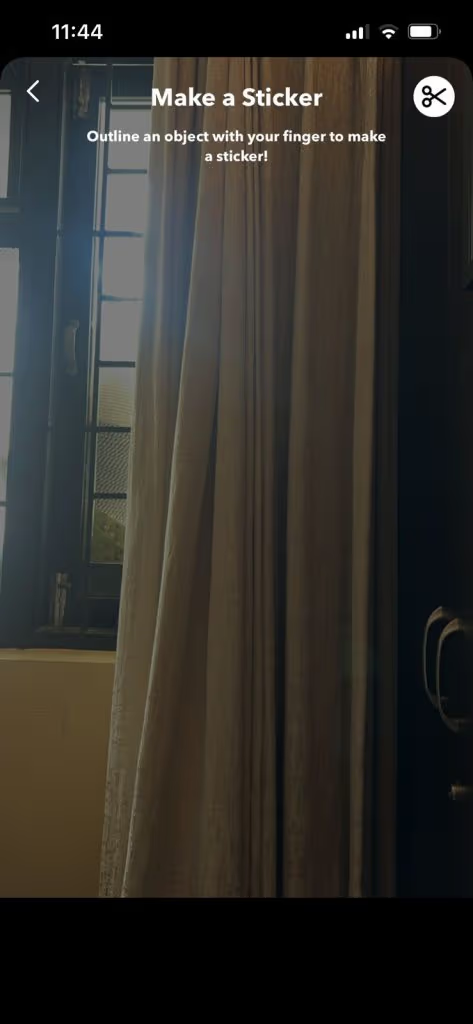
  1. Use the scissors icon on the editing screen.
  2. Outline the object or area in your snap that you want to turn into a sticker.
  3. Save the custom sticker for future use.

Step 7: Save or Share Your Snap

  1. Once satisfied with your stickers, tap the arrow button to share your snap.
  2. Alternatively, save it to your Memories or Camera Roll by tapping the down-arrow icon.

Tips and Tricks for Using Stickers

1. Pin Stickers to Videos

For video snaps, you can pin a sticker to a moving object:

  1. Tap and hold the sticker.
  2. Drag it over the object in the video you want to pin it to.
  3. Release to pin. Snapchat will track the object’s movement, keeping the sticker in place.

2. Use Layering for Depth

Add multiple stickers to create a layered effect. For example, place a Bitmoji behind an emoji for a fun visual dynamic.

3. Match Stickers to Themes

If your snap has a specific theme, choose stickers that align with it. For example, use snowflakes for winter snaps or suns for summer vibes.

4. Make Use of Seasonal Stickers

Snapchat frequently updates its sticker library with seasonal and holiday-themed options. Stay updated and use these to keep your snaps relevant.

5. Combine with Other Features

Pair stickers with text, filters, and drawing tools to create truly unique snaps.

How to Remove or Edit Stickers

If you change your mind about a sticker:

  1. Tap and hold the sticker you want to remove.
  2. Drag it to the trash bin icon that appears at the top of the screen.
  3. To edit placement or size, tap the sticker again and adjust as needed.

Frequently Asked Questions

Can I use stickers in chats?

Yes, you can add stickers to your chat messages. Tap the sticker icon in the chat window and choose from the available options.

How do I find trending stickers?

Snapchat often features trending or popular stickers at the top of the sticker menu. These can include seasonal themes or viral GIFs.

Are custom stickers saved?

Yes, the custom stickers you create are saved in the sticker menu under the scissors icon for future use.

Can I create Bitmoji stickers?

If you’ve linked your Bitmoji account to Snapchat, you can access a personalized collection of Bitmoji stickers featuring your avatar.

Previous ArticleTop 5 Solutions for your SaaS Business Model
Next Article SaaS Success Stories: 10 Companies To Look At for Inspiration
Shashank Tripathi

Shashank is an IT engineer with a knack for breaking down complex tech topics into easy-to-understand insights. With over four years of experience, he specializes in writing about SaaS, IT asset management, cybersecurity, enterprise IT, and more. His work has been featured on platforms like HuffPost and CoJournal, where he blends technical expertise with an engaging writing style. Passionate about innovation, he continues to explore the ever-evolving world of technology, making it accessible for readers across industries.

Related Posts

QuickBooks Time Pricing Plans 2026: Complete Guide

June 25, 2026

Best HRIS for Different Company Sizes & Industries in 2026 | Top HR Software Picks

June 19, 2026

How to Streamline Marketing Campaigns with Project Management Tools

June 17, 2026

Best Practices for Implementing a Resource Scheduling Tool | Expert Guide

June 16, 2026
Editor's Picks

NinjaOne Acquires Dropsuite to Unify Backup and Endpoint Management

July 11, 2025

Gusto Pricing Explained: Which Plan Is Right for Your Business in 2026?

April 7, 2026

ClickUp Pricing Plans & Features (2026): Is It Still the Best All-in-One Work Platform?

April 6, 2026

Top 50 Onboarding Statistics for 2026

March 11, 2026

45 Key Remote Work Statistics To Look Out For

March 12, 2026

Best Employer of Record (EOR) Services for February 2026

February 18, 2026

Freshdesk Pricing Plans 2026: Which Plan Is Right for Your Support Team

February 3, 2026

Employer of Record vs PEO: Which Service Is Right for You?

January 19, 2026

Talkroute Review 2025: Is This the Virtual Phone System Your Business Needs?

July 10, 2025

Comet vs Dia: The Rise of AI Browsers

July 21, 2025
Recent Posts

Best AI Dropshipping Tools in 2026

June 30, 2026

Best Work Tracking Software for Productivity, Time Management & Team Performance in 2026

June 26, 2026

QuickBooks Time Pricing Plans 2026: Complete Guide

June 25, 2026

10 Best Reputation Management Tools for Monitoring and Improving Brand Reputation (2026)

June 25, 2026

Top 5 Screen Recording Software for PC in 2026

June 24, 2026

Top 10 SSO Solutions for Secure and Seamless User Authentication in 2026

June 23, 2026

10 Best 3D Modeling Software Solutions for Designers, Engineers & Creators in 2026

June 19, 2026

Best HRIS for Different Company Sizes & Industries in 2026 | Top HR Software Picks

June 19, 2026

How to Streamline Marketing Campaigns with Project Management Tools

June 17, 2026

Top 10 Compliance and Regulatory Software for 2026

June 17, 2026

Subscribe now!

Power up your business growth through innovation! Subscribe to our monthly newsletter for cutting-edge SaaS insights and to stay ahead of the curve with the latest trends in software

About
  • Home
  • All Categories
  • Blog
  • SW Score Methodology
  • SaaS Terms Glossary
Vendors
  • Get Listed
Legal
  • Privacy Policy
  • Terms of Use
  • Cookie Policy
SaaSworthy
Facebook X (Twitter) LinkedIn Instagram

[email protected]

©2026 SaaSworthy.com

Type above and press Enter to search. Press Esc to cancel.